
 Donator rank benefits
 Open perk planner ↗
In-game interfaces
Find the controls used in Aleges activities. Select a picture to open it at full size. Menu details come from the game cache, and example screens show how populated panels look.
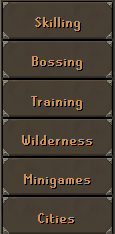
Choose a destination category from the left column.
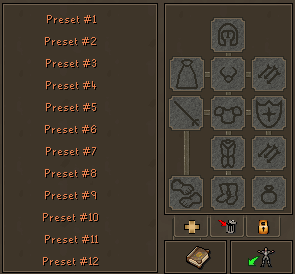
Select a saved slot to inspect its equipment. The centre column shows each equipment position.
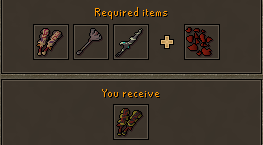
The Ruby Dual Macuahuitl recipe shows three ingredients and ruby moon fragments above the result.
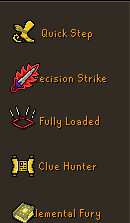
The perk list pairs each perk name with its icon. Select a perk to inspect its cost and eligible equipment.

Use Offerings to choose an offering, Perks to review unlocks and Shop to spend points.
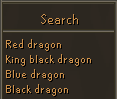
Search for a monster, then select its name in the results.

The arrows change the visible tiers. Claim Rewards collects eligible rewards.

The supply selection offers Life, Chaos and Power. Each bundle has a separate choice in the panel.
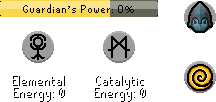
Track guardian power and the separate elemental and catalytic energy counters.
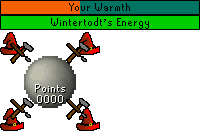
Watch your warmth and Wintertodt’s energy. The brazier display also shows your points.
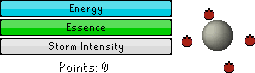
Energy, essence and storm intensity each have a separate bar above the points counter.

Read the four colour-coded positions from left to right as west, east, southeast and southwest.

The water and contribution bars track boat flooding and your participation separately.
Choose Reset Mould to start over or Set Mould to commit your selection.
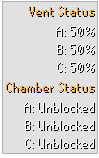
The upper readings show the three vent percentages. The lower readings show whether the corresponding chambers are blocked. Values shown are examples.
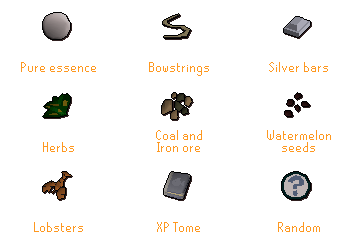
Select a reward on the token screen to inspect it before claiming. The bottom-right question mark selects the random reward.
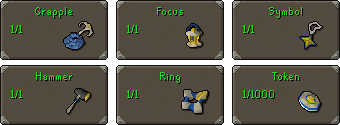
Each slot shows the stored quantity and its capacity. The pictured example has one token and one of each piece of equipment deposited.

The green bar and percentage show your remaining oxygen underwater. The gauge pictured is half full.

From left to right, discard the catch, bank eligible items for five numulites, or take the catch into your inventory.
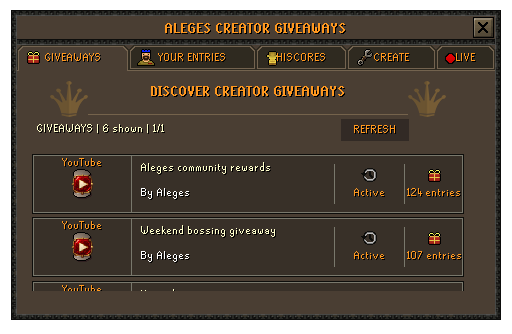
The creator hub displays the available giveaways. The pictured campaign is an example.
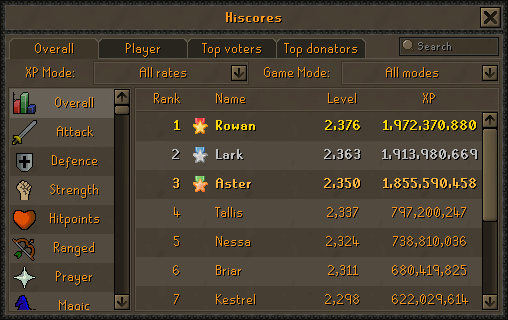
The board lists players and scores for the selected skill. The standings shown are examples.
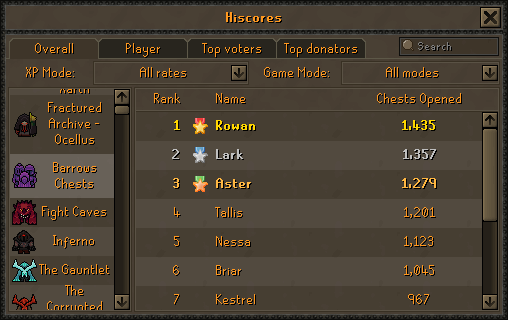
Select an activity to inspect its standings. The pictured standings are examples.
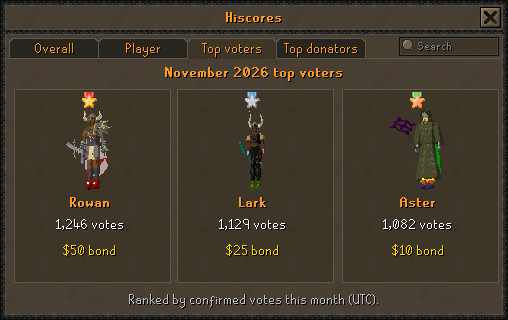
The Top voters tab shows the selected month and reward positions. The standings shown are examples.
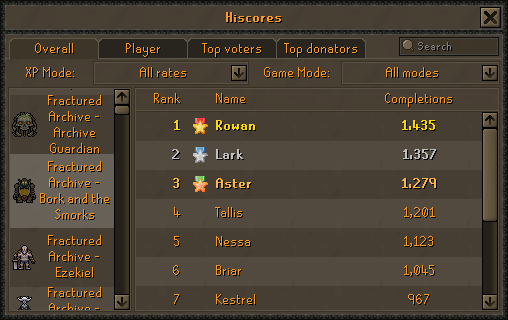
The raid tab displays the recorded encounter and party result. The result shown is an example.
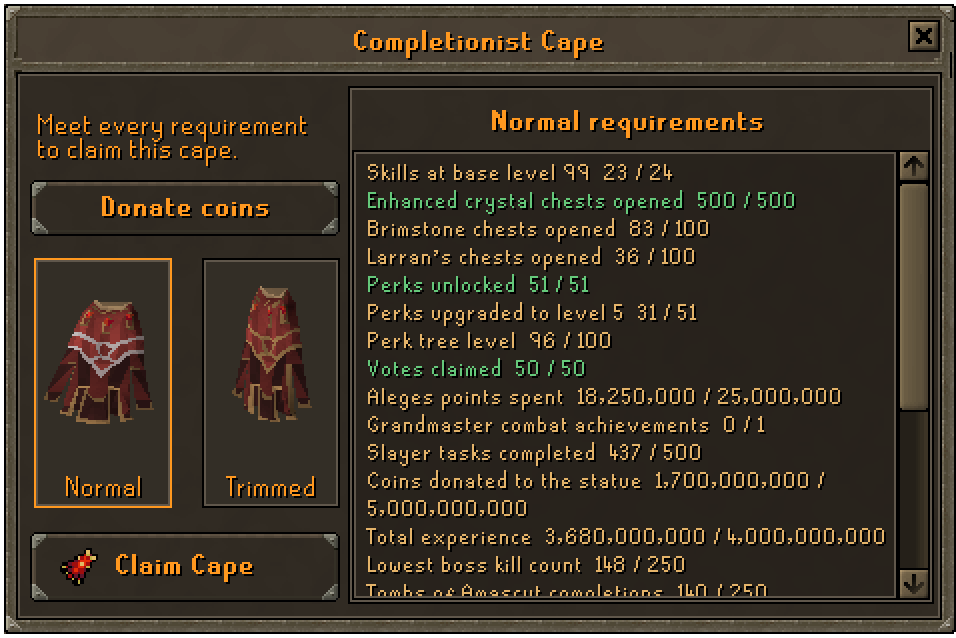
Use the Normal tab to inspect requirements and claim the regular cape. The progress shown is an example.
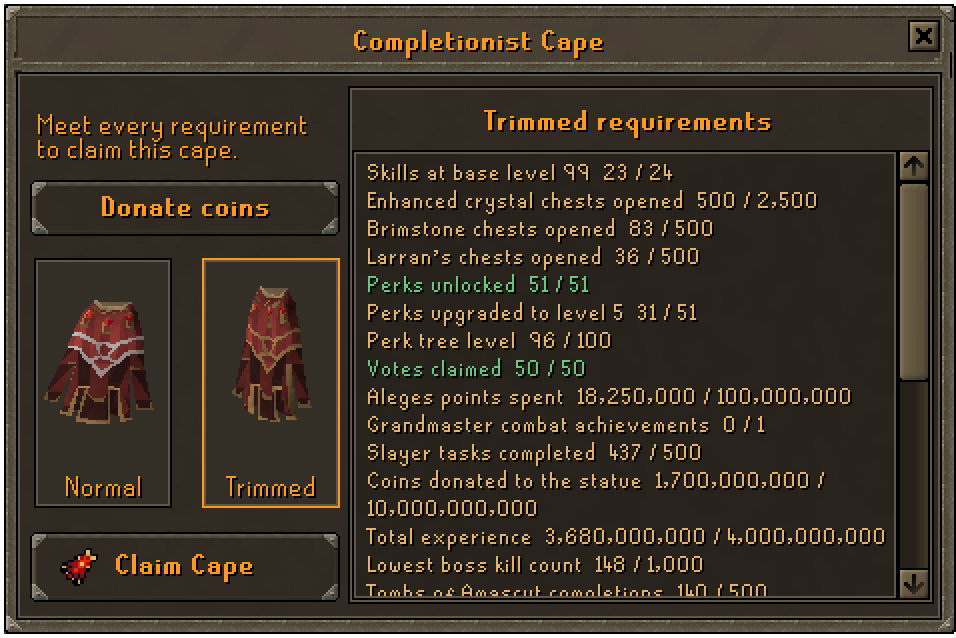
The Trimmed tab lists the additional goals for the trimmed cape. The progress shown is an example.